Dash App
Abacus includes a supported Dash app for workspace-based scenario planning.
Use it when you already have a fitted run directory and want to inspect, edit, evaluate, compare, sweep, and export scenarios without writing the entire workflow by hand.
The app does not fit PanelMMM. It loads an existing fitted run, reuses the
saved idata, and evaluates planner scenarios against that fitted model.
For the recommended entry points and beta scope, see Supported Surface.
Install the optional dependencies
The planner extra installs the Dash and Plotly dependencies used by the UI.
Launch the supported app
Use the supported module launcher for fitted pipeline results:
This launcher is the recommended interactive entry point for beta evaluation. It loads the fitted run, opens or seeds a planner workspace, and starts the app with the threaded job runner used by the supported UI.
Useful flags:
--workspace-idto open one previously saved workspace--workspace-nameto control the seeded workspace name--current-periodsand--future-periodsto change the default seeded windows--budget-scaleto scale the default future budget--build-onlyto validate the run and print a summary without starting Dash--host,--port, and--debugfor the Dash server
For example:
Create the app from Python
If you want to embed the UI in your own script, use the supported helper:
Abacus also still exposes the lower-level
create_scenario_planner_dash_app(...) factory when you already have a
ScenarioComparison or ScenarioWorkspace.
What the launcher requires
The supported launcher expects a fitted results directory that contains:
run_manifest.json- a fit-stage
idataartefact
When the metadata stage is present, the launcher prefers the in-run config
artifacts under 00_run_metadata/ and only falls back to
run_manifest.json["config_path"] if those files are absent.
In build-only mode, the launcher prints the selected config path and its provenance so you can see whether the planner loaded:
resolved_in_runoriginal_in_runcopied_in_runexternal_manifest_path
This makes the launcher more portable when the original config path no longer exists, but the chosen config can still fail if it references dataset files that are not present on the current machine.
When these optional files are present, the app also loads them for richer UI views:
70_optimisation/budget_response_curves.csv70_optimisation/budget_bounds_audit.csv
What the UI includes
The current app has five tabs:
Plan Setupfor run context, workspace metadata, saved workspaces, draft inventory, and the launch path intoScenario BuilderScenario Builderfor editing one draft at a time and evaluating it back into the workspaceReviewfor cross-scenario totals, deltas, rankings, movers, and approval/export readinessExplainfor response curves, operating-region views, lift comparisons, and diagnostics/audit surfacesExportfor reproducible export bundles and deterministic sensitivity output selection
What the app saves
The workspace app persists planning state under the fitted run directory:
| Path | What Abacus saves |
|---|---|
scenario_planner/workspaces/ |
workspace JSON files and compact manifests |
scenario_planner/cache/ |
cached evaluated scenarios and cache index |
scenario_planner/exports/ |
export bundles and zipped archives |
This means a planner session stays attached to one fitted run.
Plan Setup page
The Plan Setup page shows the loaded run context and the active planner workspace. It also lets you:
- open a different saved workspace for the same run
- clone the current workspace into a new planning branch
- edit workspace name, owner, tags, and notes
- inspect revision history, job history, and evaluation-cache reuse
- launch the current workspace into
Scenario Builder
This page is the planner launch surface: planning context stays visible first, while operational details remain available through collapsed secondary sections.
Scenario Builder page
The Scenario Builder page is interactive. You can:
- create
current,manual_allocation, andfixed_budget_optimizeddrafts - duplicate or delete drafts
- edit names, dates, carryover, budget, and manual allocations
- capture scenario owner, workflow status, approvals, pinning, tags, and notes
- evaluate and save the draft back into the workspace
When a draft has been evaluated, the page shows planned versus realised spend, allocation detail, and scenario metadata. When a draft has changed but has not yet been re-evaluated, the page shows a draft preview instead.
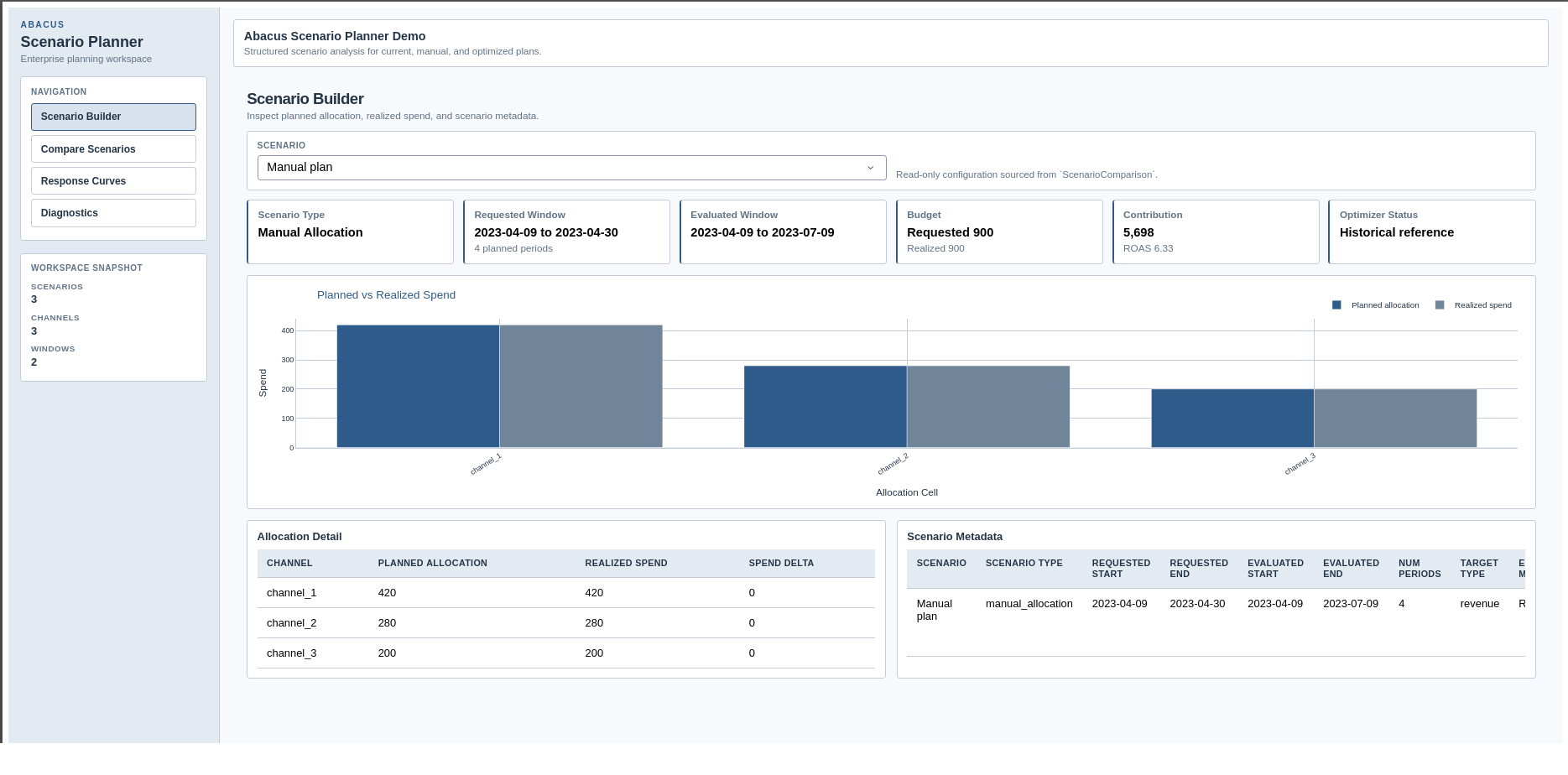
Scenario Builder page in the supported Dash app.
Review page
The Review page focuses on scenario-to-scenario trade-offs and review readiness. It includes:
- scenario summary cards
- overview and delta charts
- channel comparison charts
- scenario ranking and top-mover tables
- contribution-over-time comparisons
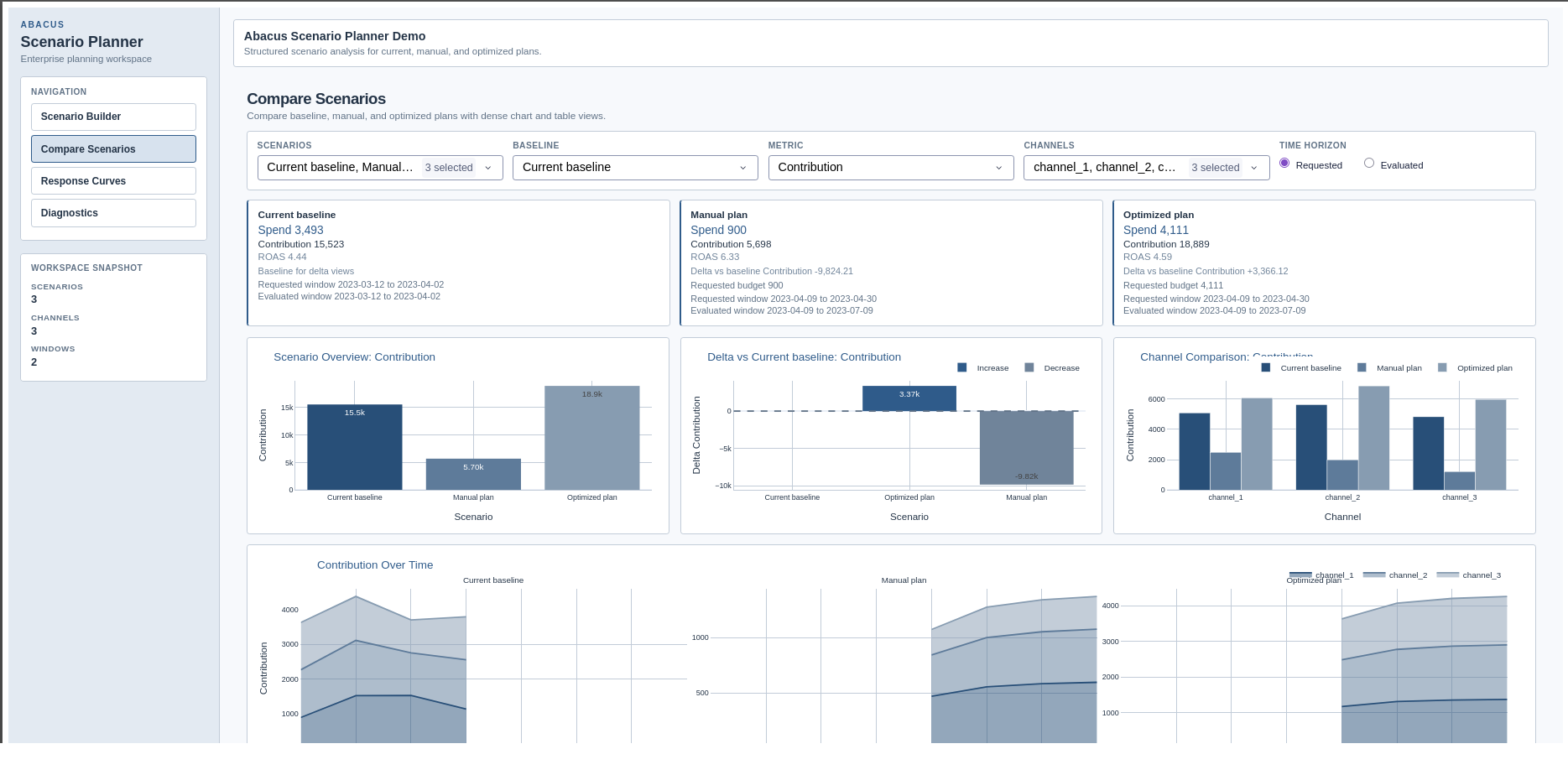
Compare Scenarios page in the supported Dash app.
Explain and Export pages
The remaining tabs build on the same workspace state:
Explainoverlays scenario reference points on the saved Stage 70 saturation-only response-curve artefact when available- the plotted marker position follows the saved reference curve at each scenario’s spend-per-period level
- marker hover text also shows the actual evaluated average contribution so you can compare the scenario outcome with the reference-curve position
Explainalso surfaces scenario warnings, optimiser status, bounds audit, allocation reconciliation, operating-region views, and lift comparisonsExportwrites reproducible bundles under the run directory and exposes any saved sensitivity output selections
Background jobs
The supported app runs draft evaluation and sensitivity sweeps as background jobs.
In the current beta:
- the app queues draft evaluation and sensitivity sweeps
- the UI polls the active job and refreshes the workspace when the job completes
- export runs synchronously, but Abacus still records it in job history
The UI currently tracks one active planner job at a time. Finish the current evaluation or sweep before starting another one.
Practical guidance
- Launch the app from a fitted results directory, not from raw input data.
- Use separate cloned workspaces for competing planning narratives.
- Re-evaluate a draft after changing dates, budget, or allocation values.
- Check both requested and evaluated windows when carryover is enabled.
- Review the Diagnostics page before exporting or sharing a scenario set.
- Treat the built-in launcher as a local beta workflow rather than a production deployment surface.
Common pitfalls
- Launching the app without installing
.[planner] - Pointing the launcher at a directory without
run_manifest.jsonand fit artefacts - Expecting the app to fit a model from scratch
- Interpreting a draft preview as evaluated output before clicking
Evaluate and Save - Starting a second evaluation or sweep while another planner job is still running