Use this section when you want to compare historical, manual, and optimised
future plans with abacus.scenario_planner.
The scenario planner is a higher-level planning surface than the low-level
optimisation wrapper. It works in total horizon spend units, returns structured
comparison tables, and includes a supported workspace app for fitted runs.
Pages
Supported Surface: The recommended planner entry
points, fitted-run contract, persisted workspace state, and beta limits.
Overview and Workflow: What the planner does,
how it differs from low-level optimisation, and how scenario windows work.
Scenario Specifications: The public scenario
spec classes, allocation shapes, bounds, and budget distributions.
Python API: How to use ScenarioPlanner.evaluate(...) and
the supported workspace helpers from Python.
Comparison Outputs: The structure and meaning of
ScenarioResult, ScenarioComparison, and the output tables.
Dash App: How to launch the supported workspace UI from a
fitted run, work with saved workspaces, and understand background jobs.
Subsections of Scenario Planning
Overview and Workflow
Use the scenario planner when you want to compare whole plans rather than run a
single low-level optimisation call.
The planner combines three things:
typed scenario specifications
a Python comparison service
a supported workspace app for fitted results directories
For the supported beta entry points and current limits, see
Supported Surface.
What the planner compares
The retained planner supports three scenario types:
Scenario type
Purpose
Public spec
Current
Use observed history as a reference plan
CurrentScenarioSpec
Manual allocation
Simulate a user-defined future plan
ManualAllocationScenarioSpec
Fixed-budget optimised
Optimise a future plan at a fixed budget
FixedBudgetOptimizedScenarioSpec
Planner units versus optimiser units
The most important distinction is budget units.
Surface
Public budget contract
PanelBudgetOptimizerWrapper
Per-period spend
ScenarioPlanner
Total spend over the whole scenario horizon
For example, if a four-period scenario has a total budget of 900_000, the
planner converts that to per-period units internally before it calls the
wrapper or response sampler.
Requested and evaluated windows
Each scenario has a requested window from start_date to end_date.
For simulated scenarios, the evaluated window can be longer than the requested
window when you set include_carryover=True. Abacus extends the synthetic
future path so lagged adstock effects can continue after the requested end
date.
The planner reports both windows in the metadata output.
Historical overlap for current scenarios
CurrentScenarioSpec is strict about history.
Its requested window must overlap observed data. Abacus does not reinterpret a
future-only window as “use the latest history instead”.
Typical workflow
The common workflow is:
Fit PanelMMM.
Build one or more scenario specs.
Either run ScenarioPlanner.compare(...) or launch the workspace app from
the fitted run directory.
Inspect the comparison tables, save workspaces, and export the planning
outputs you need.
Mixing up total horizon spend and per-period spend
Using a future-only window in CurrentScenarioSpec
Forgetting that carryover can extend the evaluated window
Scenario Specifications
This page documents the public spec classes under abacus.scenario_planner.
Most users create one of the three concrete scenario specs:
CurrentScenarioSpec
ManualAllocationScenarioSpec
FixedBudgetOptimizedScenarioSpec
Abacus also exposes shared base models such as
HistoricalReferenceScenarioSpec and SimulatedScenarioSpec, but you do not
normally instantiate those directly.
Shared fields
All public scenario specs inherit these core fields:
Field
Meaning
name
Display name for the scenario
start_date
Requested scenario start date
end_date
Requested scenario end date
scenario_id
Stable scenario key used in outputs
If you do not set scenario_id, Abacus derives one by slugifying name.
Scenario IDs must be unique within one ScenarioPlanner.compare(...) call.
CurrentScenarioSpec
Use CurrentScenarioSpec for a historical reference plan.
ScenarioComparison is a row-wise concatenation of the individual scenario
results, with scenario identifiers added to every table.
totals
totals has one row per scenario.
It includes:
scenario_id
scenario_name
scenario_type
total_spend
contribution_mean
contribution_median
contribution_hdi_94_lower
contribution_hdi_94_upper
efficiency_metric
efficiency_mean
efficiency_median
efficiency_hdi_94_lower
efficiency_hdi_94_upper
efficiency_metric is ROAS for revenue targets and CPA for conversion
targets.
channels
channels has one row per (scenario, channel).
It includes:
scenario identifiers
channel
spend
spend_share
spend_per_period
contribution summary columns
contribution-per-period columns
efficiency summary columns
efficiency_metric
The planner aggregates non-channel panel dims before it builds this table. For
example, a (geo, channel) model still returns one row per channel here.
contributions_over_time
contributions_over_time has one row per (scenario, date, channel).
It includes:
scenario identifiers
date
channel
contribution_mean
contribution_median
contribution_hdi_94_lower
contribution_hdi_94_upper
Like channels, this table aggregates non-channel panel dims before
summarising.
allocations
allocations keeps the original allocation grain.
It includes:
scenario identifiers
the allocation dims, such as channel, geo, or brand
allocation
realized_spend
For current scenarios, allocation is the summed historical spend over the
reference window. For simulated scenarios, allocation is the requested total
horizon allocation and realized_spend is the realised spend from the response
simulation.
metadata
metadata is the audit table for each scenario.
Shared fields include:
scenario_id
scenario_name
scenario_type
start_date
end_date
evaluated_start_date
evaluated_end_date
num_periods
target_type
efficiency_metric
Additional fields depend on scenario type.
Current scenario metadata
Current scenarios add:
reference_window_dates
Manual scenario metadata
Manual scenarios add:
requested_total_budget
total_budget
reference_window_dates
budget_unit
Fixed-budget optimised metadata
Optimised scenarios add:
requested_total_budget
total_budget
optimization_success
optimization_status
optimization_message
optimization_objective_value
reference_window_dates
budget_unit
Requested versus evaluated windows
The metadata table is the best place to check whether the evaluated window
matches the requested window.
When include_carryover=True, the evaluated end date can be later than the
requested end_date.
ScenarioComparison.to_store_payload() converts the comparison tables into a
JSON-friendly dict of record lists:
payload=comparison.to_store_payload()
This is the payload format consumed by the supported workspace app.
Common pitfalls
Reading channels as if it retained non-channel panel dims
Ignoring metadata when carryover is enabled
Comparing requested allocation with realised spend without checking the
allocations table
Supported Surface
Use this page to understand which Scenario Planner entry points Abacus
supports for beta evaluation.
The planner has two primary surfaces:
a Python comparison API for scripted planning workflows
a workspace-based Dash app for interactive scenario editing and review
Recommended entry points
Use these entry points in preference order.
Entry point
Use it when you want to
Notes
ScenarioPlanner
evaluate or compare scenarios from Python
Best fit for notebooks, scripts, and testable planning flows
python -m abacus.scenario_planner
launch the supported interactive app from a fitted run directory
Starts the workspace UI with file-backed persistence
create_app_from_results_dir(...)
embed the supported app in your own Python launcher
Returns app, run_context, workspace_service, and workspace
load_workspace_bundle(...)
load the fitted run and active workspace without starting Dash
Useful for custom wrappers around the supported app
WorkspaceService
work with saved workspaces programmatically
Advanced surface for cloning, saving, evaluating, sweeping, and exporting
Advanced integration surfaces
Abacus also exposes lower-level objects such as:
create_scenario_planner_dash_app(...)
ThreadedScenarioPlannerJobRunner
SynchronousScenarioPlannerJobRunner
WorkspaceStore
These are public, but they are more implementation-shaped than the recommended
entry points above. Use them when you need to embed the planner into a custom
application or override the default job runner or storage behaviour.
Results directory contract
The supported launcher and load_workspace_bundle(...) expect a fitted run
directory, not raw modelling inputs.
The run directory must include:
Requirement
Why it matters
run_manifest.json
Abacus uses it to locate the config and saved artefacts
a fit-stage idata artefact
Abacus attaches the saved posterior to the rebuilt model
When metadata-stage config artifacts are present, Abacus prefers those
in-run files when rebuilding the saved PanelMMM:
00_run_metadata/config.resolved.yaml
00_run_metadata/config.original.yaml
the copied config file under 00_run_metadata/
Only when those in-run config artifacts are absent does the planner fall back
to run_manifest.json["config_path"].
That makes the supported loader more portable when the original config path is
no longer available, but it does not guarantee full relocation across
machines. The chosen config can still reference dataset files outside the run
directory.
The planner can also load these optional optimisation artefacts when they are
present:
70_optimisation/budget_response_curves.csv
70_optimisation/budget_bounds_audit.csv
When these files are available, the app can show saved saturation-reference
response-curve and bounds-audit views.
What the app persists
The workspace app stores its own planning state under the fitted run
directory:
Abacus includes a supported Dash app for workspace-based scenario planning.
Use it when you already have a fitted run directory and want to inspect,
edit, evaluate, compare, sweep, and export scenarios without writing the
entire workflow by hand.
The app does not fit PanelMMM. It loads an existing fitted run, reuses the
saved idata, and evaluates planner scenarios against that fitted model.
For the recommended entry points and beta scope, see
Supported Surface.
Install the optional dependencies
python -m pip install -e ".[planner]"
The planner extra installs the Dash and Plotly dependencies used by the UI.
Launch the supported app
Use the supported module launcher for fitted pipeline results:
This launcher is the recommended interactive entry point for beta evaluation.
It loads the fitted run, opens or seeds a planner workspace, and starts the
app with the threaded job runner used by the supported UI.
Useful flags:
--workspace-id to open one previously saved workspace
--workspace-name to control the seeded workspace name
--current-periods and --future-periods to change the default seeded windows
--budget-scale to scale the default future budget
--build-only to validate the run and print a summary without starting Dash
Abacus also still exposes the lower-level
create_scenario_planner_dash_app(...) factory when you already have a
ScenarioComparison or ScenarioWorkspace.
What the launcher requires
The supported launcher expects a fitted results directory that contains:
run_manifest.json
a fit-stage idata artefact
When the metadata stage is present, the launcher prefers the in-run config
artifacts under 00_run_metadata/ and only falls back to
run_manifest.json["config_path"] if those files are absent.
In build-only mode, the launcher prints the selected config path and its
provenance so you can see whether the planner loaded:
resolved_in_run
original_in_run
copied_in_run
external_manifest_path
This makes the launcher more portable when the original config path no longer
exists, but the chosen config can still fail if it references dataset files
that are not present on the current machine.
When these optional files are present, the app also loads them for richer UI
views:
70_optimisation/budget_response_curves.csv
70_optimisation/budget_bounds_audit.csv
What the UI includes
The current app has five tabs:
Plan Setup for run context, workspace metadata, saved workspaces, draft inventory, and the launch path into Scenario Builder
Scenario Builder for editing one draft at a time and evaluating it back into the workspace
Review for cross-scenario totals, deltas, rankings, movers, and approval/export readiness
Explain for response curves, operating-region views, lift comparisons, and diagnostics/audit surfaces
Export for reproducible export bundles and deterministic sensitivity output selection
What the app saves
The workspace app persists planning state under the fitted run directory:
Path
What Abacus saves
scenario_planner/workspaces/
workspace JSON files and compact manifests
scenario_planner/cache/
cached evaluated scenarios and cache index
scenario_planner/exports/
export bundles and zipped archives
This means a planner session stays attached to one fitted run.
Plan Setup page
The Plan Setup page shows the loaded run context and the active planner
workspace. It also lets you:
open a different saved workspace for the same run
clone the current workspace into a new planning branch
edit workspace name, owner, tags, and notes
inspect revision history, job history, and evaluation-cache reuse
launch the current workspace into Scenario Builder
This page is the planner launch surface: planning context stays visible first,
while operational details remain available through collapsed secondary
sections.
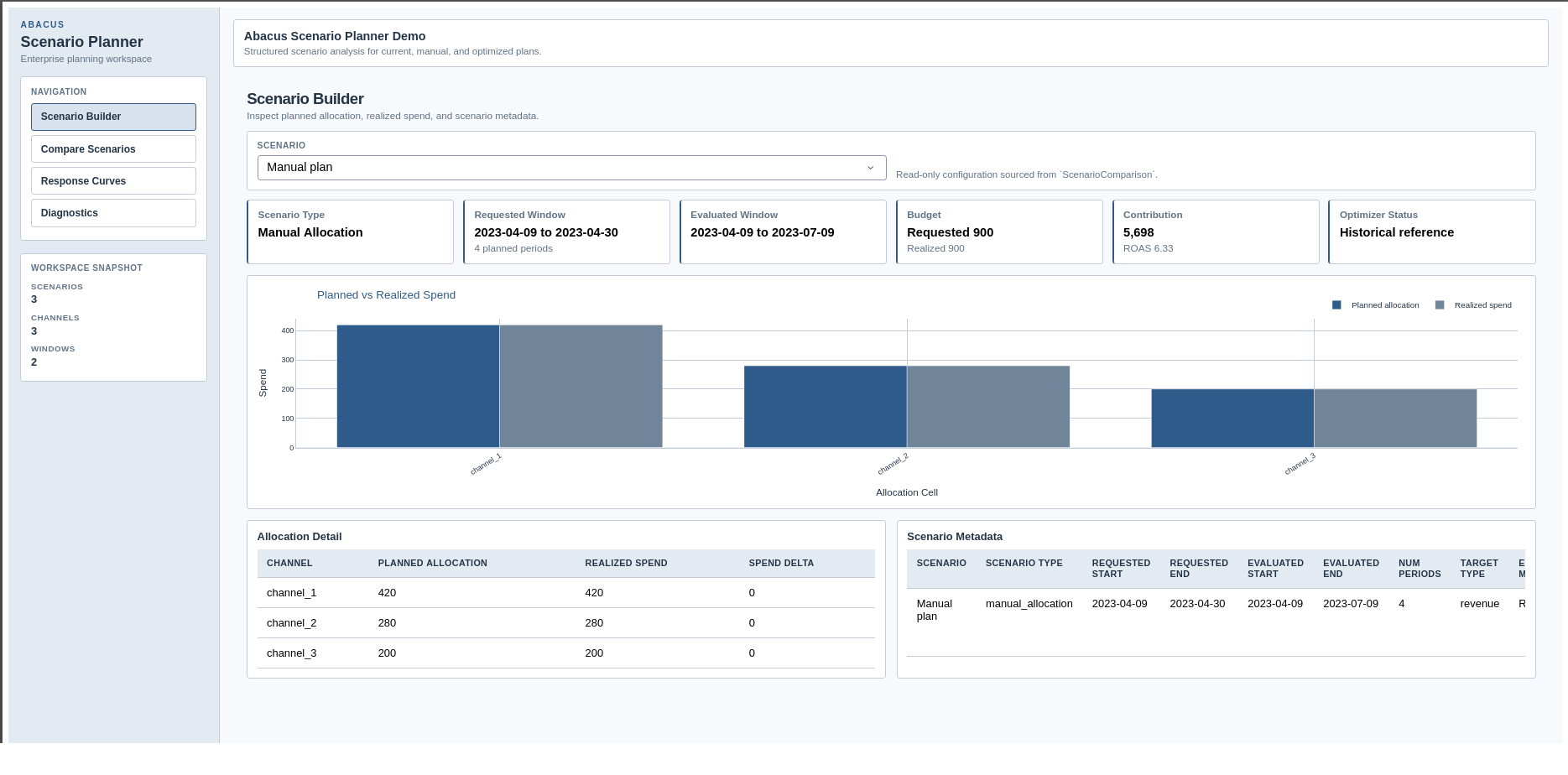
Scenario Builder page
The Scenario Builder page is interactive. You can:
create current, manual_allocation, and fixed_budget_optimized drafts
duplicate or delete drafts
edit names, dates, carryover, budget, and manual allocations
capture scenario owner, workflow status, approvals, pinning, tags, and notes
evaluate and save the draft back into the workspace
When a draft has been evaluated, the page shows planned versus realised spend,
allocation detail, and scenario metadata. When a draft has changed but has not
yet been re-evaluated, the page shows a draft preview instead.
Scenario Builder page in the supported Dash app.
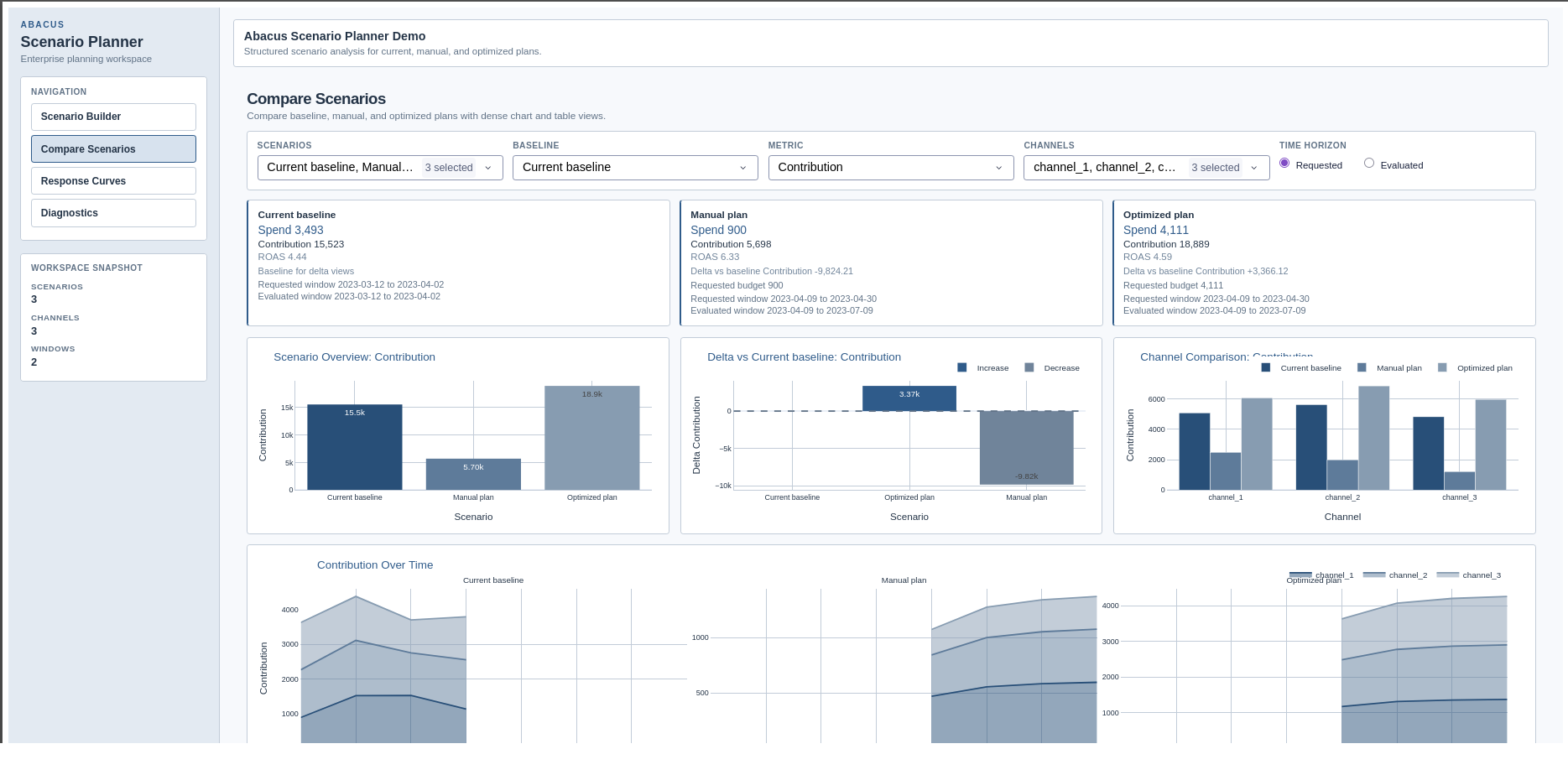
Review page
The Review page focuses on scenario-to-scenario trade-offs and review
readiness. It includes:
scenario summary cards
overview and delta charts
channel comparison charts
scenario ranking and top-mover tables
contribution-over-time comparisons
Compare Scenarios page in the supported Dash app.
Explain and Export pages
The remaining tabs build on the same workspace state:
Explain overlays scenario reference points on the saved Stage 70 saturation-only response-curve artefact when available
the plotted marker position follows the saved reference curve at each scenario’s spend-per-period level
marker hover text also shows the actual evaluated average contribution so you can compare the scenario outcome with the reference-curve position
Explain also surfaces scenario warnings, optimiser status, bounds audit, allocation reconciliation, operating-region views, and lift comparisons
Export writes reproducible bundles under the run directory and exposes any saved sensitivity output selections
Background jobs
The supported app runs draft evaluation and sensitivity sweeps as background
jobs.
In the current beta:
the app queues draft evaluation and sensitivity sweeps
the UI polls the active job and refreshes the workspace when the job completes
export runs synchronously, but Abacus still records it in job history
The UI currently tracks one active planner job at a time. Finish the current
evaluation or sweep before starting another one.
Practical guidance
Launch the app from a fitted results directory, not from raw input data.
Use separate cloned workspaces for competing planning narratives.
Re-evaluate a draft after changing dates, budget, or allocation values.
Check both requested and evaluated windows when carryover is enabled.
Review the Diagnostics page before exporting or sharing a scenario set.
Treat the built-in launcher as a local beta workflow rather than a production deployment surface.
Common pitfalls
Launching the app without installing .[planner]
Pointing the launcher at a directory without run_manifest.json and fit artefacts
Expecting the app to fit a model from scratch
Interpreting a draft preview as evaluated output before clicking Evaluate and Save
Starting a second evaluation or sweep while another planner job is still running